-1.png?width=500&height=125&name=PathSpot-Logo-RGB-Horizontal-1.0.0-1-e1600793653493%20(1)-1.png)
Video Walk Through
For instructions on how to edit an existing user, please scroll to the bottom section 👇
Step By Step Breakdown
✅ Prerequisites
Before proceeding, confirm you have the following:
-
An active PathSpot account.
-
The appropriate permissions (Admin or Manager roles typically have access to these features).
🛠️ Accessing the User Management Tools
-
Navigate to pathspot.app in any web browser.
-
Log in with your credentials.
- If you do not remember your password follow the 'forgot password' flow on the sign-in page.
-
On the left-hand navigation menu, select “Manage Users.” Under this tab, you'll see two primary options:
- View All Users – Allows you view and to edit existing user accounts
-
Create Users – Grants dashboard access to a new user.
Additional User Creation:
📱Creating App Users
- You can create app users directly on the dashboard, using a flow similar to the one outlined below for creating dashboard users (learn more here), or you can create users directly within the app (learn more here).
👥 Clarification Note: Manage Employees Tab
- This section allows you to add, edit, or create profiles on the HandScanner and is not connected to creating user profiles on the Dashboard or our Mobile Application. Your HandScanner must have Employee Codes enabled for these profiles to function properly. Learn more here.
⚙️ User Roles Overview
By default, locations will typically start with variations of three basic dashboard roles (custom roles can be created upon request):
-
Admin: Full access to all features and settings.
-
Manager: Can view all data and reports; can sign off on reports.
-
Employee/User/Member: View-only access.
➕👤Creating a New Dashboard User
-
Click “Create Users” under the Manger User Tab on the left side panel
- User Profile: Where you provide the new user's core profile details such as name, phone number, address, and preferences.
- User Access Type: This field allows you to select the type of user you are creating, Dashboard User for the PathSpot Dashboard, Mobile App User, or Both. Your selection will determine which fields appear, as each user type has slightly different requirements.
*Your selection in the User Access Type dropdown will also appear in the top-right corner of the next section, under Edit Roles & Permissions.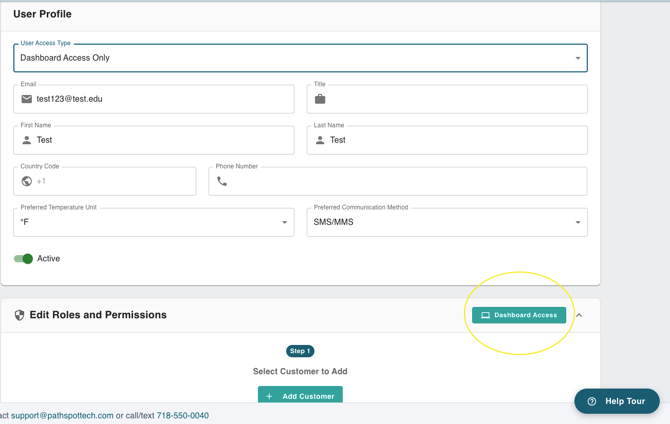
- User Access Type: This field allows you to select the type of user you are creating, Dashboard User for the PathSpot Dashboard, Mobile App User, or Both. Your selection will determine which fields appear, as each user type has slightly different requirements.
-
User Profile Fields:
- Email (required)
- Title (not required)
- First Name (Required)
- Last Name (Required)
- Phone (not required)
- Preferred Temperature Unit (C or F)
- Preferred Communication Method: SMS (US) WhatsApp (International)
- STEP 1 - Edit Roles and Permissions
- After completing the required fields above, choose the customer to associate with the new user. Most users will see only one customer, but if you have access to multiple customers, you can assign more than one if needed.
- After completing the required fields above, choose the customer to associate with the new user. Most users will see only one customer, but if you have access to multiple customers, you can assign more than one if needed.
- STEP 2 - Add Administrative & Location Permissions
- STEP 2A - Customer Level Permissions: This controls user management capabilities within your brand i.e. managing, creating and editing program level functions system wide.
- There will be a list of customer roles created by PathSpot by default. They will be broken down by product and level access. If you need additional roles created or clarification on the default roles please contact your CSM. This also applies to location based roles in the following step.
- STEP 2B - Location Level Permissions: This controls what users can do within the dashboard i.e. what tasks, functions or data they can view, download, complete, edit.
- All role permissions tags (i.e. set goals, download reports, view handwashes ect) associated to the role will populate once selected. Note that you can grant the role access selected to multiple location groups at the same time.
- STEP 2A - Customer Level Permissions: This controls user management capabilities within your brand i.e. managing, creating and editing program level functions system wide.
- Click Save and wait for the success message in the top right corner.
⚠️ Important: The page may take a few seconds to load. To prevent duplicate entries, click “Save” only once. Your changes will reflect shortly after.
> You can also submit a form to our support team Here
Editing an Existing User (Video Guidance Below)
- Navigate to Manage Users > View All Users.
- Find the user you want to update and click Details.
- Find the section you want to edit
- User Profile (top section): Basic User Information email, phone, title.
- Edit Roles & Permissions (bottom section): Impacts accessibility on the dashboard and or Mobile App
-
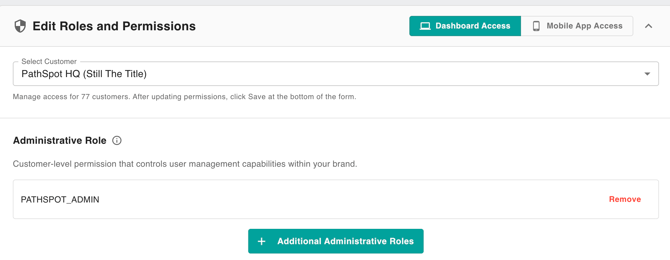
Remove Current Role: To change a role, first remove the role(s) associated with the platform you want to update.
For example, if the user is currently set as a Admin at PathSpot HQ (as shown in the image below), remove the existing role before assigning the updated role. in the following step.
-
-
-
-
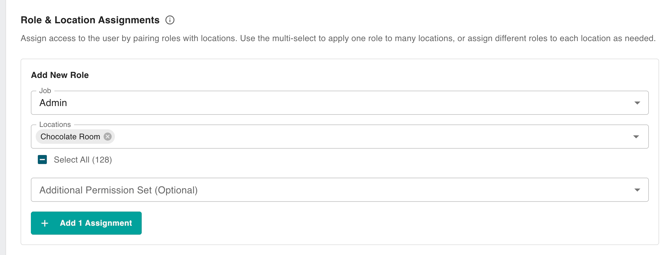
Adding New Role: Before clicking Save, be sure to click the “+ Add 1 Assignment” button after entering the updated role, job, or location fields. If you do not click this button, your changes will not be saved.
This does not create an “extra assignment”; it saves the assignment updates being made for the user. In the example below, this will grant Justin admin permissions for the Chocolate room where he previous had Admin Access to Headquarters in the picture above.
-
-
-
-
- Please note that if you select both App and Dashboard, roles must be selected in both tabs within the Roles & Permissions Summary section. Otherwise, your changes will not be saved.

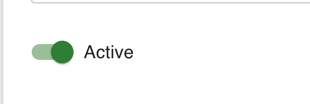
- You can also deactivate or reactivate users. If the active toggle is greyed out you do not have the appropriate permissions.
- Please note that if you select both App and Dashboard, roles must be selected in both tabs within the Roles & Permissions Summary section. Otherwise, your changes will not be saved.
-
- Scroll to the bottom of the page to find the Save button and make sure to click it after making changes.
🔒 Note: Removing Customer / Location access can only be adjusted by PathSpot Support.