-1.png?width=500&height=125&name=PathSpot-Logo-RGB-Horizontal-1.0.0-1-e1600793653493%20(1)-1.png)
Setting Up Reminders (User Field Assignments) – Executed on the Dashboard
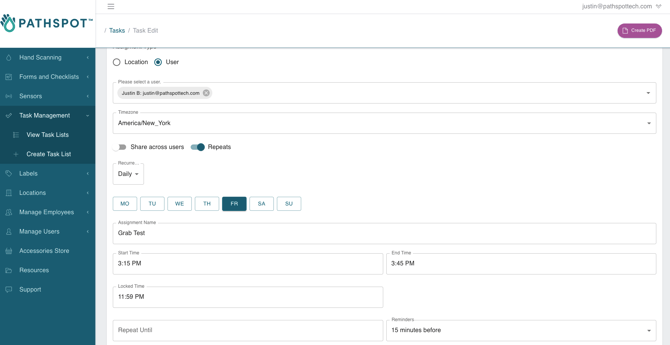
➡️ Click Path: Task Management > View Task Lists > Vertical Ellipsis (Right-Hand Side) > View/Edit
Section: Default Schedule
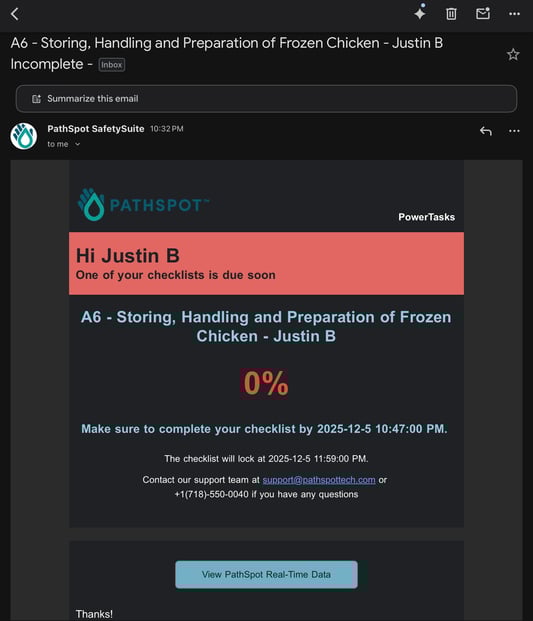
🔔 Any user listed in the User field will receive a notification if the task list in question is not fully complete.
- Daily List Cadence: The reminder time is set in the Reminder field, which can be configured to 15 minutes, 30 minutes, 1 hour, or 2 hours.
- Weekly List Cadence: The reminder time is set in the Reminder field, which can be configured to Day of, 1 day before, or 2 days before.
- Weekly List Cadence: The reminder time is set in the Reminder field, which can be configured to Day of, 1 day before, or 2 days before.
This reminder is based on the end time, not the locked time.
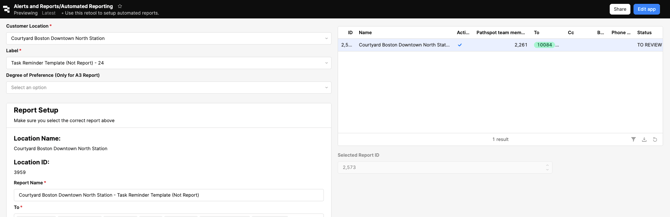
Setting Up Reminders (Role Field Assignments) – Executed on Retool
📌 If task lists aren’t delegated to specific users through the assignment type but are instead assigned at the location level to user roles, then you’ll need to use Retool and subscribe individual users to the report under Task Reminder Template #24.
Setting Up Reminders (AdHoc Assignments) – Executed on the MobileApp
📝 Anytime you assign a checklist ad hoc, you also have the option to set a task list reminder. Watch the video below for the click path.
💡 Considerations
Changing End Times⏱️
-
If you change the end time after setting a reminder, the system will still send the alert based on the new timing.
-
Example: You set a 15-minute reminder for a list that originally ended at 11:59 PM. Later that day, you move the end time to 9:30 PM at 9:10 PM. The system will now send the alert in 5 minutes.
-
-
If there isn’t enough buffer between your new end time and the reminder interval, the alert will still trigger but it will be simultaneously
-
Example: You change the end time to 9:30 PM with a 15-minute reminder, but you make the change at 9:20 PM. That leaves only 10 minutes before the new end time—so the alert end time will be update and at the same time you will also get the reminder alert
-
Reminder Precision
Issue: The reminder will alert anyone at the location, as it is not currently set up per individual task.