-1.png?width=500&height=125&name=PathSpot-Logo-RGB-Horizontal-1.0.0-1-e1600793653493%20(1)-1.png)
Getting Started:
Download and Log-In to the PathSpot SafetySuite App on your iPad or iPhone
- Apple: Recommended 10 generation iPad or newer & Android: Version 16+ (labels not supported)
- Scan the QR code below or click this link.
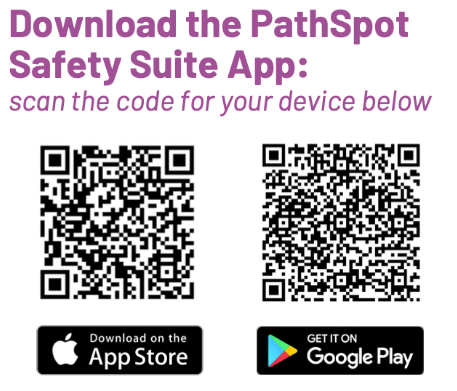
- Download the PathSpot SafetySuite app on your iPad.
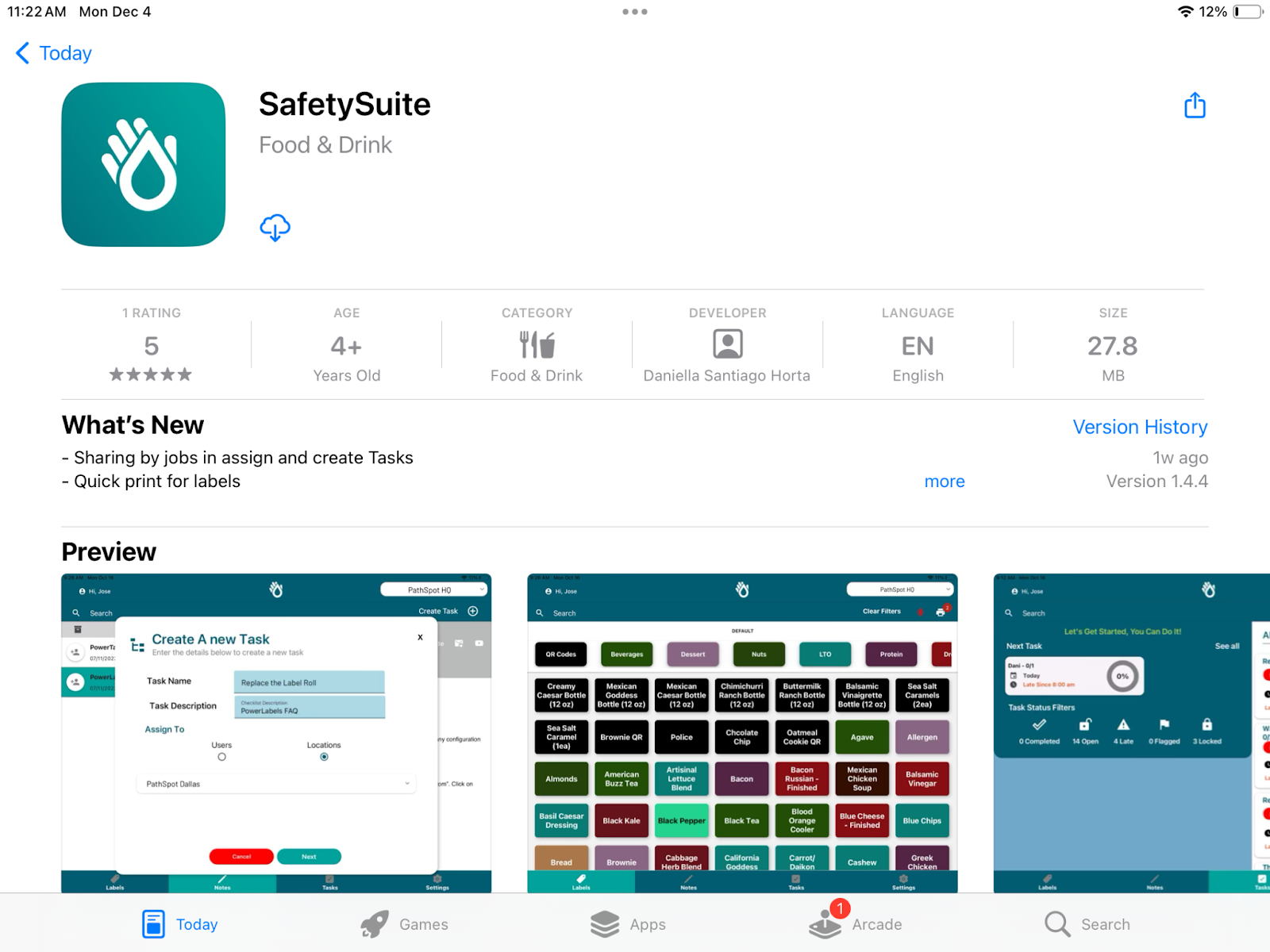
- Open the app titled: SafetySuite
- After downloading the app and opening for the first time, you will be prompted to enter a PathSpot provided registration code. If you do not have this please contact PathSpot Support <support@pathspottech.com>.
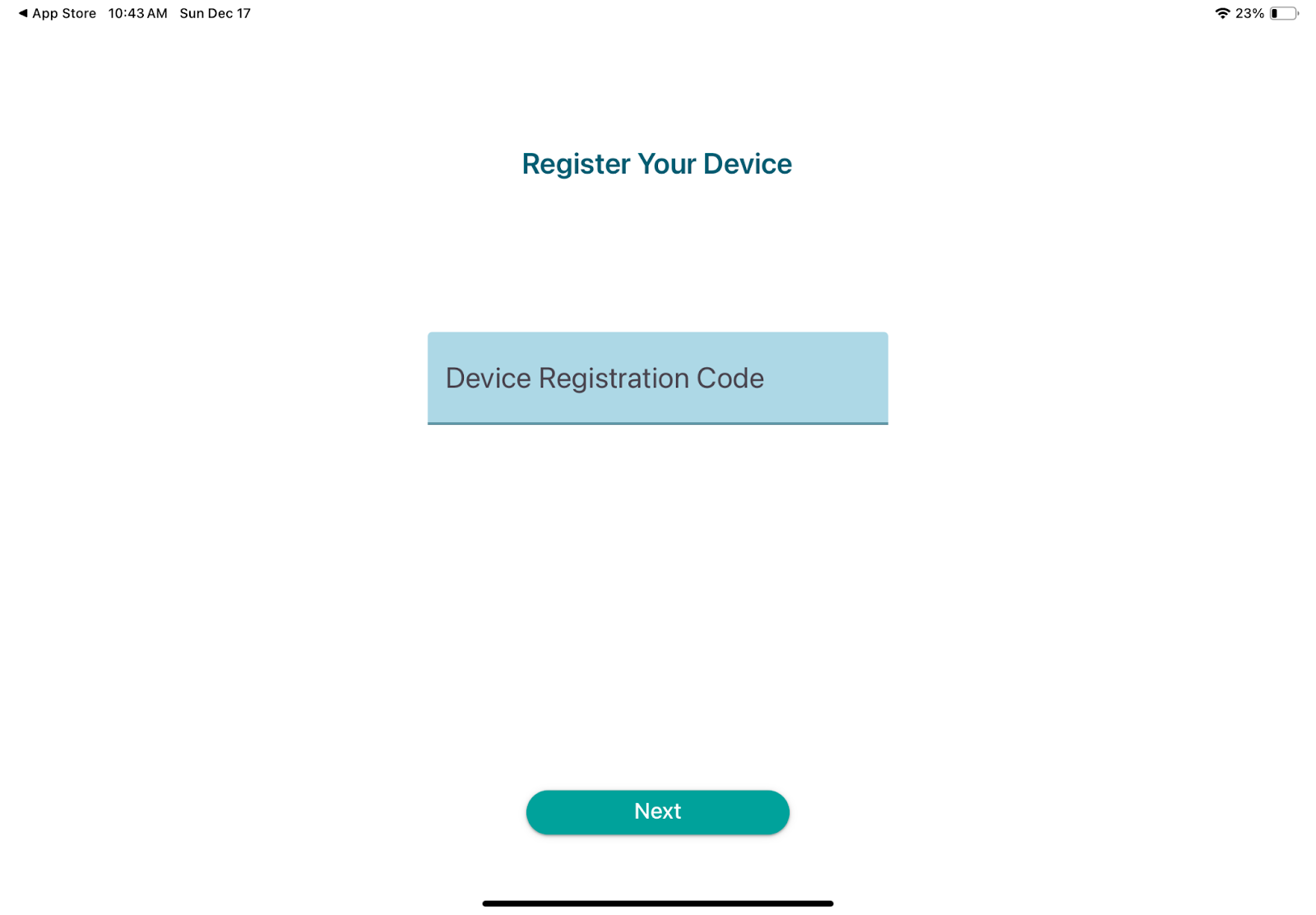
- Upon entering the code, users will be prompted with a list of locations to select.
- Enter your preferred Pin Code and you will be logged in. This pin will be used to log in under your account for every subsequent login.
If you need assistance with setting up the App, please contact support@pathspottech.com
Updating the PathSpot App (must be on software version 1.32 or later):
If on a previous version, please use the QR code at the top of this document to update the app. Otherwise, follow the steps below:
- Open the PathSpot SafetySuite App
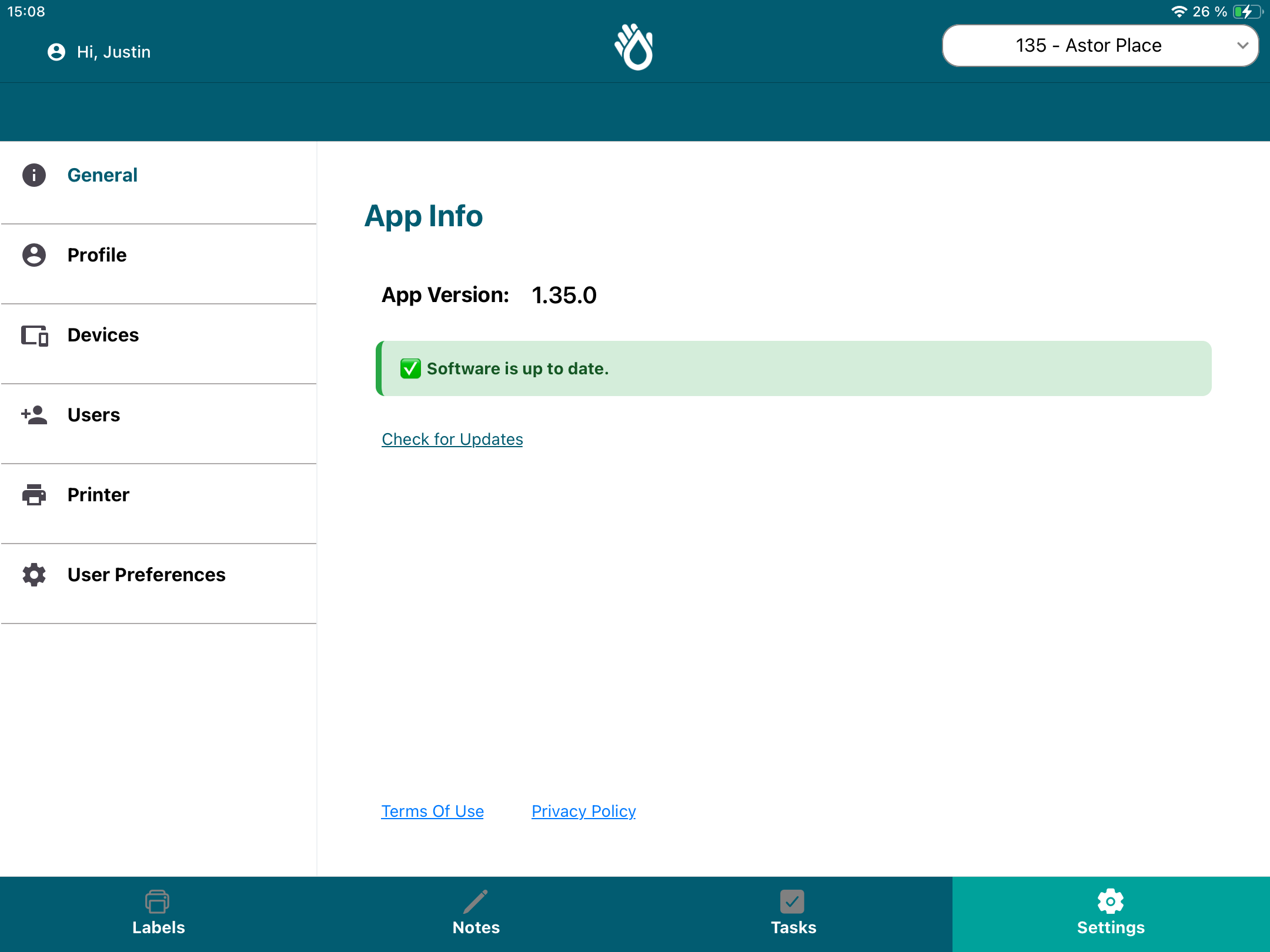
- Navigate to the Settings tab on the SafetySuite App.
- Click on General
- Click the check for updates link.
- If an update is needed, a blue software update button will appear. Clicking on this button, will automatically navigate you to the App store page so you can update to the most recent version.
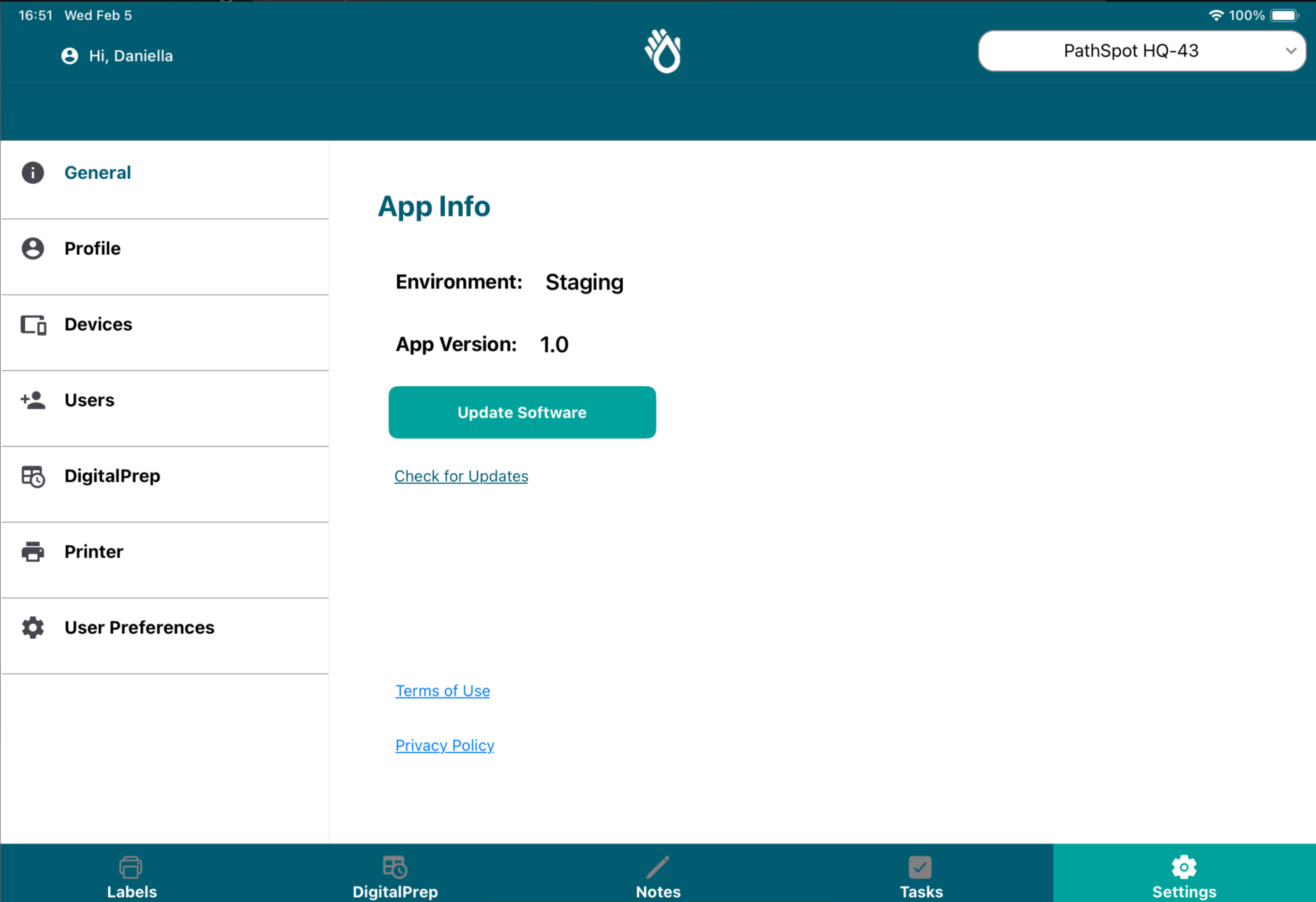
- If no software update is needed, you will see a message letting you know that the software update is already up to date.
- For partners that have their devices managed by their IT team through MDM, if a software update is not needed, you will see a red message letting you know you will need to contact your IT team.
- If an update is needed, a blue software update button will appear. Clicking on this button, will automatically navigate you to the App store page so you can update to the most recent version.