-1.png?width=500&height=125&name=PathSpot-Logo-RGB-Horizontal-1.0.0-1-e1600793653493%20(1)-1.png)
1. Clean the thermal print head
- Turn the printer OFF.
- Open the top cover.
- Remove the label roll.
- Open/release the thermal print head.
- Wipe the thermal print head gently with a lint-free cloth/cotton swab and the recommended cleaning solution.
- Let it dry completely.
- Reinstall the roll.
2. Clean the platen roller
- Remove the labels.
- Open the print-head mechanism.
- Locate the platen roller underneath the print head.
- Rotate the roller while wiping it.
- Brother specifies a lint-free cloth dipped in isopropyl alcohol or ethanol.
- Make sure no lint/residue remains.
- Let it dry before loading labels.
🎥 Video Guidance Here
3. Load and align the labels
- Put the label roll into the holder.
- Adjust the roll guides so the roll is held securely without squeezing it.
- Feed the labels straight through the media path.
- Make sure the labels are positioned correctly relative to the gap/black-mark sensor.
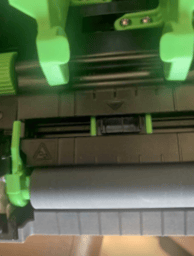
- Close the print-head mechanism firmly.
- Make sure the media isn't angled or rubbing against the guides
📄 For the detailed pictures, use Brother's TD-2350D User's Guide:
4. ⭐ Calibrate the TD-2350D
This is the important part: the TD-2350D uses the LCD menu for calibration.
On the printer:
- Press Menu.
- Use the ▲/▼ buttons to select Media.
- Press OK.
- Select Calibration.
- Press OK.
- Let the printer detect the media.
- Once finished, print a test label.
📄 Additional Calibration Documentation
5. If calibration doesn't fix the positioning
You can also calibrate from the computer using Brother Printer Setting Tool:
Printer Setting Tool → Paper Size Setup → Edit/New → Auto Media Configuration
For the TD-2350D, Brother says the detected media information can then be imported into the paper-size settings.
⬇️ TD-2350D Downloads & Printer Setting Tool
Quick troubleshooting
| Problem | First thing to check |
|---|---|
| Labels skip | Run Menu → Media → Calibration |
| Printer feeds several labels | Check gap/black-mark sensor + calibration |
| Print is shifted vertically | Recalibrate media |
| Print is crooked | Check roll/media guides |
| White streaks | Clean thermal print head |
| Uneven/dark print | Clean print head + platen roller |
| Labels slip sideways | Adjust roll/media guides |
| Calibration still wrong | Check that the selected media type/size matches the actual labels |