-1.png?width=500&height=125&name=PathSpot-Logo-RGB-Horizontal-1.0.0-1-e1600793653493%20(1)-1.png)
PathSpot offers precise control over who can view, edit, or access data on the dashboard or Mobile App by specific products and locations (if applicable)
👤 Basic Set Up
The role assigned to a user represents their job responsibilities or general function within the organization. By default, your Customer Success Manager will typically begin by assigning the following role (exact naming may vary).
If a specific role name or a unique combination of permissions is required beyond the standard permissions, please consult your Customer Success Manager or PathSpot Support at support@pathspottech.com. This will also be covered during your onboarding training.
Employee
- 👀 View data only
Manager
Admin
- 👀 Full viewing access
- ✏️ Full edit/delete capabilities
- 📊 Full reporting permissions - Learn more about PathSpot's Reporting Apparatus here
🔐 Permissions: Defines the actions a user is allowed to perform within the system. A comprehensive list of permissions is provided below. Admins will also have access to view available permissions when creating or editing users in the Dashboard.
Related Knowledge Base Articles:
🖥️ Dashboard Platform Access
As mentioned, during onboarding, user roles are simplified into three main categories: Employee, Manager, and Admin. These roles then dictate your access on our desktop based platform (Dashboard) & Mobile Based Platform (iOS / Android App). This section will review Dashboard Level Access
🏷️ Permission Tags - Platform functions are assigned using feature-based access tags. These can be viewed any time you are creating or editing a user on the PathSpot Dashboard (with the appropriate permissions).
👉 NOTE: An email is required for Dashboard Access
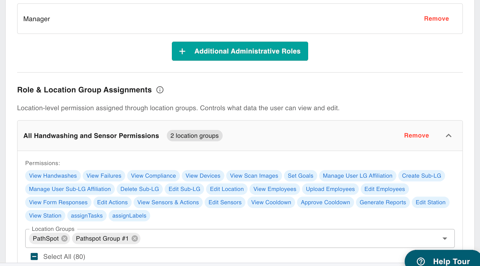
| Action | Items |
|---|---|
| 👀 View | Goals, Sensors, Stations, Cooldown |
| ✏️ Edit | Goals, Sensors, Stations, Location, Employees |
| ✅ Approve | Cooldown Processes |
| 🗂️ Manage | Location Groups |
| ⬆️ Upload | Employees |
| 📊 Generate | Reports |
| 📌 Assign | Tasks |
*For a full breakdown of tags and detailed explanations please contact your Customer Success Manager or reach out to PathSpot Support
🖥️ Dashboard - Property Access
🏢 Customer
Multiple customers can be managed and toggled within the Dashboard. Customers should only be separated when they represent completely independent business entities.
Certain brand-level permissions are configured at the customer level. For example, if a customer has access to a specific product, that product will be enabled. If access has not been granted, the product will appear under the PRO tag within the Dashboard.
To learn more about products that are not currently enabled for your account, please contact our Sales team at sales@PathSpotTech.com.
📍 Location
Tags and permissions can be applied at both the individual location and user levels. If a user requires access to multiple locations, permissions should be consolidated and assigned through a Location Group whenever possible.
Applying permissions at the Location Group level ensures consistent access across all included locations.
🧭 Location Groups
Access can be granted to one or multiple Location Groups. If needed, unique and distinct permissions can be configured for each Location Group when a user requires different levels of access across different groups.
👉 NOTE: All Departments or outlets associated with a Location or Location Group will be available if you have been granted access to the Location in which they reside.
Example:
A District Manager (Justin) oversees the Northeast Region, which includes 10 stores. These locations can be grouped into a “Northeast” Location Group for easier filtering and management.
Within the Northeast Region, Justin is responsible only for handwashing compliance, so he does not require access to Tasks or Sensors. Permissions for this Location Group should be limited accordingly.
Justin also oversees another group of stores in the Southwest Region, where he is responsible for full food safety operations. For this Location Group, Justin should be granted full administrative permissions across all applicable products.
📱 Mobile App Platform Access
The Mobile App is similar to the Dashboard in some respects and different in others. Similar to the dashboard during onboarding, user roles are simplified into three main categories: Employee, Manager, and Admin.
🏷️ Permission Tags - (Different Nomenclature From Dashboard)
👉 NOTE: An email address is not required for Dashboard access. That said , if you would like the user to receive email or text notifications, such as task list reminders, an email address will be required.
| Action | Items |
|---|---|
| 👀 View/Print | Labels, Notes, Reports, Digital Prep |
| ✏️ Edit | Users, Notes, |
| ✅ Complete | Tasks, |
| 🗂️ Manage | Users, Devices |
| ⬆️ Create | Users, Tasks, Notes, |
| ❌ Delete | Users, |
| 📌 Assign | Tasks, Labels |
*For a full breakdown of tags and detailed explanations please contact your Customer Success Manager or reach out to PathSpot Support
📱 Mobile App Property Access
(slightly different from dashboard)
🏢 Customer
Unlike Dashboard access, only one Customer can be active within the mobile app at a time. The app allows users to toggle between Locations but does not support switching between Customers.
In rare cases where a user has access to more than one Customer, the app must be deleted and reinstalled, then re-registered using the desired Customer’s unique registration code.
Grouping Locations under a single Customer follows the same behavior.
📍 Location
Multiple locations can be granted. As mentioned, a toggle in the top-right corner allows users to switch between locations. Each user-location pairing can have a unique permission set assigned; permissions do not need to be uniform across all locations. For example, a user may have Manager permissions at one location and Admin permissions at another.
These permissions will also align with the departments configured at each respective location.
👉 NOTE: All Departments or outlets associated with a Location or Location Group will be available if you have been granted access to the Location where they reside. These will appear as quick filters within the mobile app.
🏢 Location Groups
The Location Group concept is not available within the mobile application.