-1.png?width=500&height=125&name=PathSpot-Logo-RGB-Horizontal-1.0.0-1-e1600793653493%20(1)-1.png)
🔐 Access
-
Access to edit the task management dashboard is available to anyone who has opted into our Task Management mobile application (iOS & Android) .
-
The dashboard is also permission-based for both viewing and executing tasks certain tasks. If you see Task Management locked under the "Pro" tag, please contact your administrator so they can reach out to PathSpot Support at support@pathspottech.com.
- Not sure what the Task Management product is? Please refer to the linked knowledge base articles for additional information.
> Scroll to the bottom for further guidance and considerations and real-life examples to emulate when creating task lists for your property.
How to create a task list (Dashboard)
Task Scheduling Deep Dive
Task Creation Considerations & Examples:
🕒 Timing
When a task is created on your PathSpot Dashboard, its scheduled time is based on your location's set configured time zone regardless of where you are located. After the task syncs to an iPad/Android Mobile Device, the displayed start time is converted to the iPad's local device time zone.
Example 1:
A task is created for 6:45 AM in a customer configured for Eastern Time while the person is logged into their dashboard on while on West Coast time.
- A user on the mobile app in an Eastern Time displays the task starting at 6:45 AM.
- A user on the mobile app in an Central Time displays the task starting at 5:45 AM.
- Your computer time will show 3:45AM (irrelevant to the task creation)
If the customer's configured location time zone changes, any new or current task lists will then take that set time and the iPad will make its adjustment based on the newly set timezone.
Example 2:
The customer's configured time zone is changed from Eastern Time to Central Time, and a new task is created for 6:45 AM.
- A user on the mobile app in Central Time for that same list will now display the task at 6:45 AM, because the device time zone matches the customer's configured time zone.
- A user on the mobile app in Eastern Time now displays the same task at 7:45 AM, reflecting the one-hour time zone difference.
Key Behavior:
Task schedules are created using the customer's configured location time zone, but are always displayed relative to the local time zone of the device viewing them. This ensures each user sees the task time in their own local time while the scheduled event remains the same.
📅 List Cadence & Scheduling
🎥 Video guidance below
The list cadence determines how often and when a list appears in the app. Cadence settings allow you to control the frequency, timing, and days that a list assignment is available for completion in the mobile app.
For lists that do not follow a predictable cadence you can learn more about our ad-hoc function here
📆 Daily
If you want a list to appear daily from Monday–Friday, simply select those days and uncheck Saturday and Sunday.
- Select the days you would like the list to be available.
- The list will appear every selected day.
Example: A product temperature log scheduled to be completed every day, Monday–Friday.
📅 Weekly
Use this option when you want a list assignment to be available once within a selected range of days.
- Select the span of days during which the list can be completed.
- The list will appear once during that scheduled window.
Example: A checklist that is available for completion once between Monday–Friday.
🗓️ First Day of the Month
Use this option for monthly tasks that should begin on the first day of each month.
- The list becomes available on the first day of the month.
- The assignment remains available through 11:59 PM on the last day of the month.
Example: A monthly audit checklist that needs to be completed once per month.
⏰ Custom
Use this option when you need additional flexibility and want to schedule a list multiple times throughout the day.
- Schedule the same list multiple times within a day.
- Select the specific days of the week when these assignments should appear.
- Ideal for tasks that need to be completed during specific periods throughout the day.
Example: A product temperature log scheduled for multiple meal periods:
- 🍳 Breakfast
- 🥗 Lunch
- 🍽️ Dinner
✅ Summary
List cadence gives you control over when lists appear, how often they repeat, and which days they are available. Select the cadence option that best matches the workflow and completion requirements for your team.
👤 🔐 Roles & Permissions Examples:
🎥 Video guidance below
Roles are created within the app to manage user permissions and control access to specific lists. Roles can be used to restrict or allow list access depending on a user’s responsibilities.
Roles can be assigned when creating a new list or editing an existing list by selecting the appropriate option in the “Please Select A Role” field.
📘 To learn more about how roles work, please visit this page.
📅 Schedule Management Explained (Bottom section of any task list)
The Schedule Management section provides an overview of how lists are assigned, who is responsible for completing them, and when they are scheduled.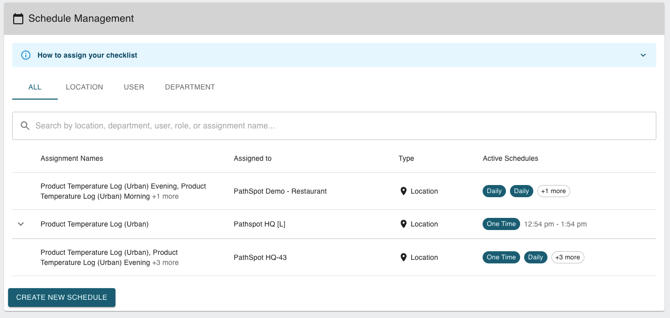
Each row represents a unique combination of:
✅ Assignment Name
✅ Assigned Location
✅ Assigned Role(s)
✅ Cadence (Schedule Frequency)
📌 How Rows Are Grouped:
If the list name + assignment + assigned roles are the same, but only the cadence changes, the schedules will be combined into the same row and you will see the various cadences in the active schedules column to the right.
Example:
The same Product Temperature Log may be scheduled:
👤 Daily for Employees
👔 Weekly for Managers
If the list, assignment, and roles are the same, these schedules will appear together on one row if there are different roles for each they will each get their own row.
📝 Assignment Names (First Column)
The Assignment Name represents the name of the list assignment.
If multiple assignments are created for the same list (such as different meal periods or tasks), each assignment will be displayed and separated by a comma.
Example:
Product Temperature Log (Urban) - Breakfast, Product Temperature Log (Urban) - Lunch
📍 Assigned To
The Assigned To field displays the location where the list is assigned, followed by the role(s) responsible for completing the assignment.
🌎 If no roles are listed, the list is available to all roles.
🍽️ Example Scenario
A list contains two assignments:
🥐 Breakfast Assignment → Completed by Employees
🍽️ Dinner Assignment → Completed by Cooks
Because different roles are responsible for each assignment, they will appear as separate rows in Schedule Management. This makes it clear who is responsible for each task and when it should be completed.
📊 Even though assignments may appear on separate rows, all list completions, tracking, and reporting remain connected to the same List ID.